Player Settings
Effects, PVP, character options, and login channels in one client window
What Are Player Settings?
Player Settings is a built-in client window with four sections: Effects, PVP, Character, and Channels. Changes are saved on your character and synced with the server.
- Buttons wait about 1 second between clicks so the server can apply the change.
- Opening the window refreshes the current values from the server.
How to Open
- Log in, then click the Player Settings icon on the icons panel under your equipment on the right.
- Use the list on the left to switch between Effects, PVP, Character, and Channels.
- Hover a row to see the full name and a short tooltip.
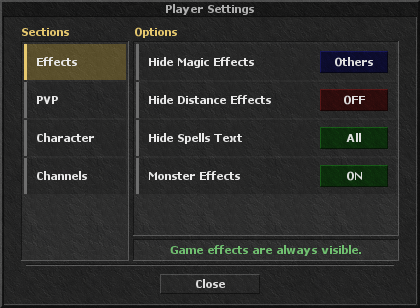
Effects
- Hide Magic Effects — hide player magic effects. Click to cycle:
- OFF — nothing is hidden.
- All — hide yours and other players'.
- Others — hide other players' only.
- Hide Distance Effects — same cycle for distance shots (OFF → All → Others).
- Hide Spells Text — same cycle for spell words (OFF → All → Others).
- Monster Effects — separate ON / OFF switch for monster effects only.
Game effects stay visible. These options only hide player magic, distance shots, spell text, and monster effects.
PVP
- Safe PVP — only attack skulled players, so you do not get a skull from someone without a skull standing next to you. You cannot change this during a fight.
- Guild Protection — when ON, you cannot attack guild mates. Both players must turn it OFF to fight each other outside special PVP areas.
- Party Protection — same rule for party members. Both players must turn it OFF to fight each other outside special PVP areas.
- Weapon AOE — turn your weapon's area damage ON or OFF.
- Attack Level — type a level and click Apply. You cannot attack players below that level, except in special PVP areas. 0 means no limit.
Skulls, frag limits, and PVP-E are on the PVP page.
Character
- Auto Blessing — buy blessings automatically when you need them.
- Health/Mana Percent — show health and mana as a percent instead of current / max.
- Fishing Boss Loot Broadcasts — show or hide fishing boss loot broadcasts in chat.
- Loot Message — show or hide monster loot messages.
- Allow Inspect — who can open your Inspect window. Default is All. Click to cycle:
- All — everyone can inspect you.
- Guild — only guild members can inspect you.
- Party — only party members can inspect you.
- OFF — other players cannot inspect you.
- Compact Damage Numbers — show combat damage as short values like 1.2k, 30m, and 30b on the target and in the server log (hits you deal and take). Default is OFF (full numbers).
You can always inspect yourself. If someone is not allowed, the Inspect window does not open and they see that you are not allowing inspect. Compact damage applies to combat hits you deal and take, including PvP.
Channels
Each channel has an ON / OFF switch. Turn a channel ON to force-open it when you log in. The list is loaded from the server.